
Rongta Bluetooth Shipping Label Printer
4.0Editor score
Automatic label identification
Compact portable design
Compatible with Mac OS
Compare the top label printers for Mac in October 2026. We review features, compatibility, and performance to help you choose the right thermal printer for
Finding a reliable label printer for Mac can be tricky when you need seamless integration with your workflow. Whether you run an online store or organize your home office, the right device saves time and reduces errors significantly.
We evaluated ten top models based on connectivity, print quality, and software support for macOS. Each product was assessed for ease of setup, reliability with shipping platforms, and value to ensure you get a printer that works smoothly with your system.
Every pick includes detailed specs, pros, cons, and real-world usage notes to guide your decision. Prices and availability change frequently, so check the current listings before purchasing to ensure you get the best deal available right now.
4.0Editor score

4.4Editor score

4.4Editor score
This table provides a side-by-side look at the key specifications and capabilities of each model. Use it to quickly identify which printer matches your specific Mac setup and shipping volume needs.




The JADENS Bluetooth Thermal Shipping Label Printer stands out as a top choice for Mac users who need reliable shipping solutions. With a strong rating and solid performance metrics, it offers a seamless integration into both home and business workflows.
We may earn a commission when you buy through this link, at no additional cost to you.
Its 203 DPI thermal print head delivers crisp text and barcodes that scan easily. The device supports both Bluetooth and USB connections, ensuring flexibility depending on your Mac setup and proximity to the machine.
While it works well with major platforms like Shopify and Amazon, note that mobile users must use the app for Bluetooth printing. Additionally, you may need to recalibrate the label size when swapping rolls to avoid errors.
This printer is ideal for small business owners who need an efficient and cost-effective way to ship packages. Its ability to handle various label sizes and platforms makes it a versatile addition to any Mac workspace.
The dual connectivity options ensure you can print wirelessly or via USB depending on your Mac model needs.
Compatible with a wide range of e-commerce and shipping platforms, making it easy to streamline your operations.
We may earn a commission when you buy through this link, at no additional cost to you.
The Rongta Bluetooth Shipping Label Printer offers an affordable entry point for Mac users needing thermal printing. Its budget-friendly price does not compromise essential features like automatic label detection and solid printing speed.
We may earn a commission when you buy through this link, at no additional cost to you.
You can print up to 150mm per second, which is efficient for small batches. The printer automatically grabs and feeds labels, reducing manual adjustment hassle and saving time during busy shipping periods.
While it may have a lower rating due to software setup nuances, it is a strong value for basic needs. Just ensure you download the correct drivers from the official website for your Mac version.
This model is perfect for individuals or very small businesses looking to cut costs without sacrificing functionality. Its compact size fits easily on any desk, making it a practical choice for home offices.
Automatic identification means less manual setup and more time focused on fulfilling orders quickly.
Its small dimensions make it ideal for tight spaces where larger printers would not fit comfortably.
We may earn a commission when you buy through this link, at no additional cost to you.
This thermal shipping label printer combines efficiency with user-friendly features for Mac users. With a high rating and solid specs, it is designed to minimize downtime during peak shipping hours while maintaining quality.
We may earn a commission when you buy through this link, at no additional cost to you.
The FlashLabel Pro app provides extensive customization options including offline storage for templates. This feature is useful if you work in areas with unstable internet, allowing you to print without waiting for cloud downloads.
While it only prints in black and white, the 203 DPI resolution ensures clear barcodes and text. The included pack of labels helps you start printing immediately after unboxing, reducing setup time.
It is a strong option for small businesses that need reliable performance without complex configurations. The durable build and straightforward interface make it a practical addition to your Mac setup.
Store designs locally to ensure you can print anytime regardless of internet connection stability.
Includes enough labels to begin shipping immediately, saving you an extra trip to the store.
We may earn a commission when you buy through this link, at no additional cost to you.
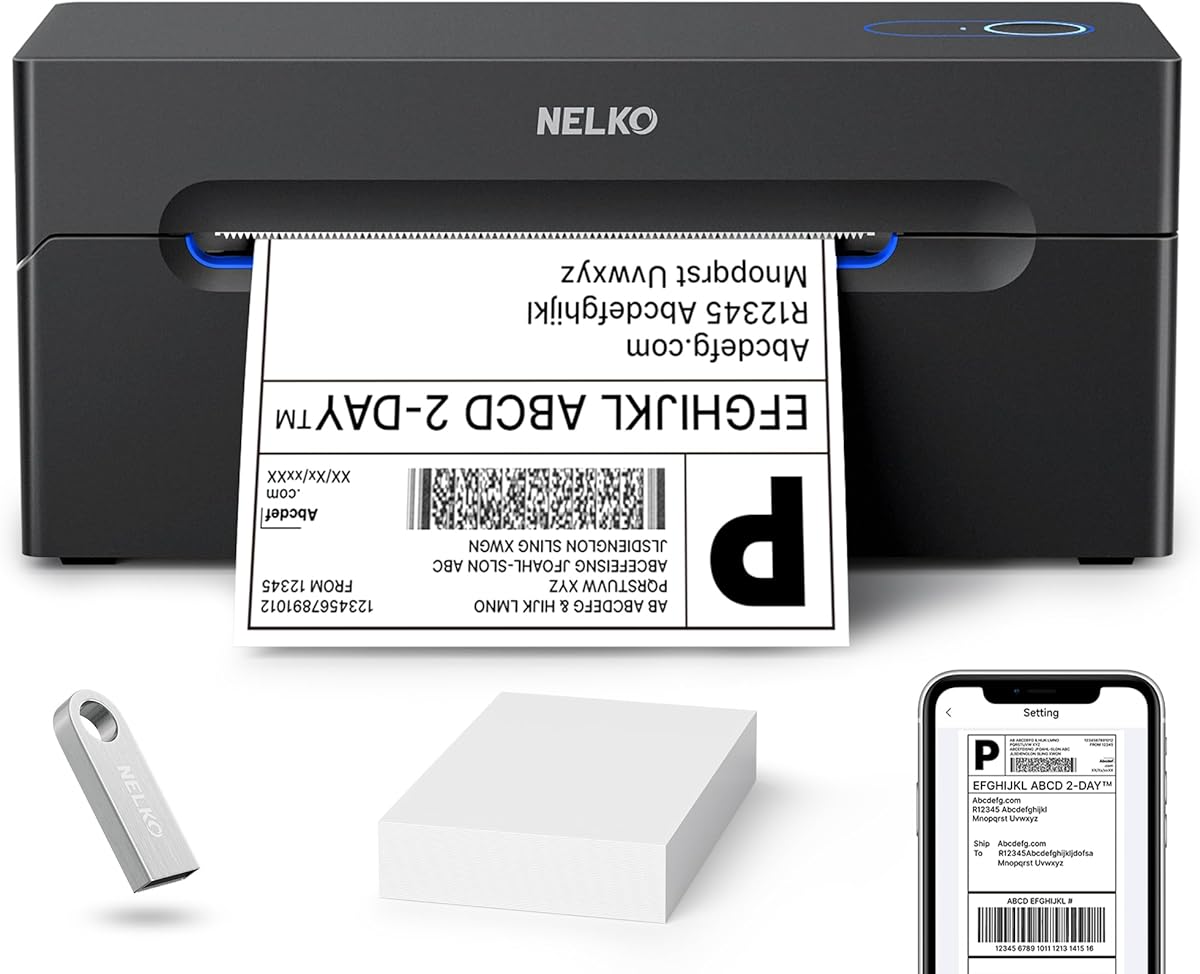
The Nelko Bluetooth Thermal Shipping Label Printer is a strong contender for Mac users who prefer USB reliability. While it supports Bluetooth, Mac OS works best with USB connections to ensure stable data transfer.
We may earn a commission when you buy through this link, at no additional cost to you.
Printing speeds reach up to 150 mm per second, allowing you to process orders quickly. It handles both fanfold and roll labels, giving you flexibility based on your storage and usage preferences.
Note that for Mac users, USB is the recommended path for stability. This model works with virtually all major e-commerce platforms, ensuring you can export and print labels easily.
This is an excellent choice for those who want a straightforward setup without relying on wireless protocols that might have compatibility quirks. The clear output and cost-saving design make it a smart buy for daily use.
Using USB ensures a steady connection on Mac without interruptions from wireless interference.
Compatible with major marketplaces so you can manage orders from one reliable device.
We may earn a commission when you buy through this link, at no additional cost to you.
The SUPVAN T50M Pro is designed primarily for home and small business organization tasks on Mac. It stands out with a highly rated free app that lets you customize labels with images and icons easily.
We may earn a commission when you buy through this link, at no additional cost to you.
It supports label widths from 3/4 inch to 2 inch, making it perfect for shelves, jars, and files. You can add photos directly from your phone or PC to create professional looking tags without complex software.
While not suitable for large shipping labels, it is ideal for personal and small business branding needs. The app allows you to save designs quickly, streamlining the labeling process for daily tasks.
This device is best suited for those who prioritize visual customization and ease of use over high volume shipping. Its high rating reflects the positive user experience with the free and intuitive app interface.
Add images and icons to create unique labels that help organize your space or brand products.
No registration or ink costs mean you can start organizing your items right away.
We may earn a commission when you buy through this link, at no additional cost to you.
The N40 Thermal Label Printer offers robust connectivity options for Mac and Linux users. With a solid rating and clear print quality, it supports a wide range of devices to ensure your workflow is not interrupted.
We may earn a commission when you buy through this link, at no additional cost to you.
It features smart paper ejection to prevent jams and waste, saving you money on labels. The included USB adapter ensures you can connect even if your Mac lacks a traditional USB port.
You should note that label size needs calibration when you change paper types. However, the fast printing speed and clear output make up for this minor step during setup.
This is a reliable choice for those who need versatility in connectivity and platform support. It is designed to handle both home and commercial shipping tasks efficiently.
Support for Mac, Linux, and Windows ensures you can use it with different systems easily.
Auto calibration and ejection help prevent waste and keep your shipping process smooth.
We may earn a commission when you buy through this link, at no additional cost to you.
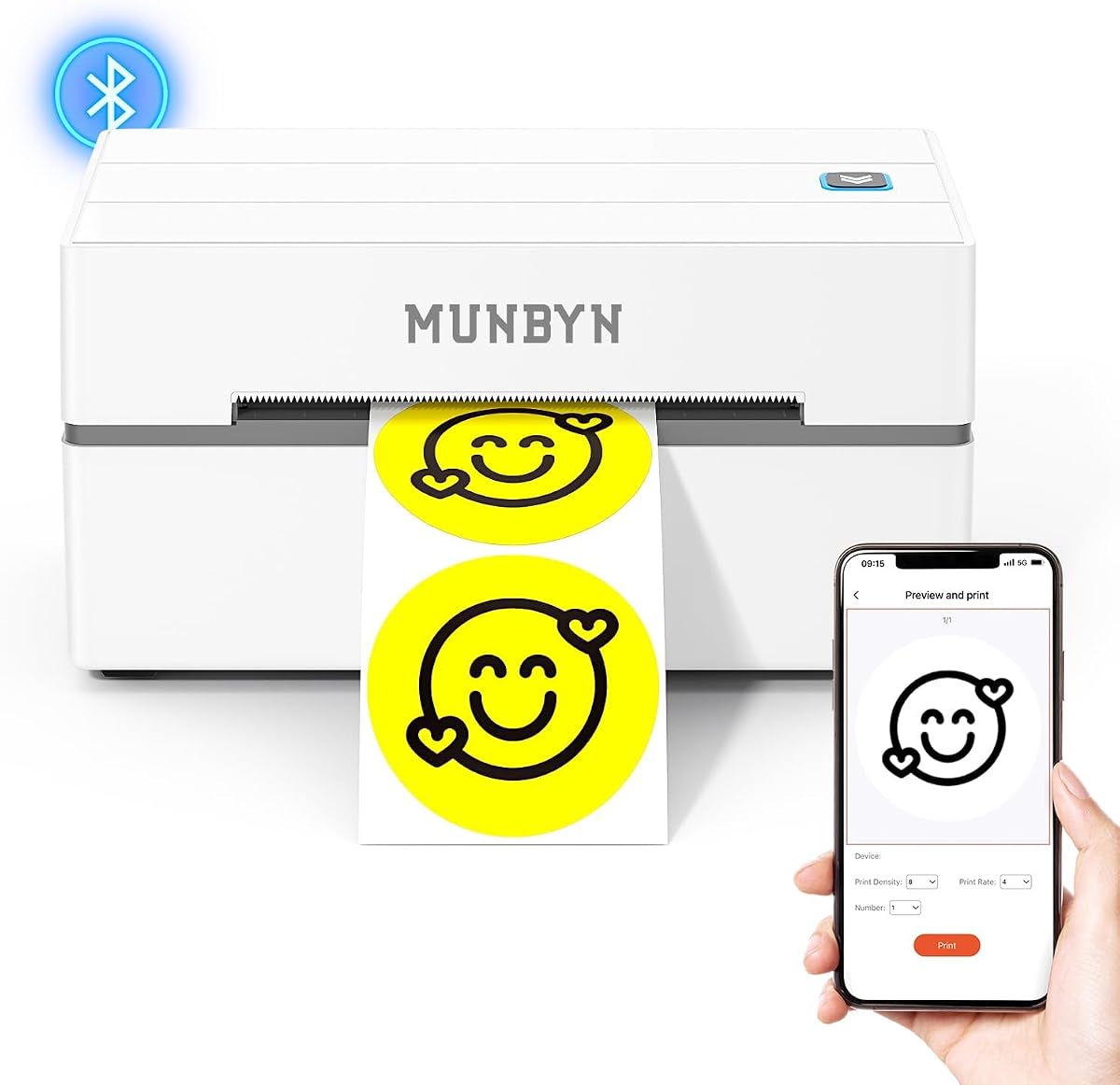
The MUNBYN Bluetooth Thermal Label Printer excels in customization options for Mac users. With a vast library of design elements and fonts, you can create professional shipping and branding labels easily.
We may earn a commission when you buy through this link, at no additional cost to you.
It offers a web editor on Google Chrome, which is perfect for Mac users who prefer not to install additional software. This makes setup quick and allows you to design labels directly from your browser.
Printing speed reaches up to 72 pages per minute, ensuring high productivity. However, for best results, the manufacturer recommends using their branded labels to avoid compatibility issues with other paper types.
This model is ideal for businesses that need strong branding and high volume output. The balance of speed, design freedom, and platform compatibility makes it a premium choice for Mac owners.
Use Google Chrome to access powerful design tools without installing heavy drivers on your Mac.
Fast printing rates help you keep up with demand during peak shipping seasons.
We may earn a commission when you buy through this link, at no additional cost to you.
This variant of the MUNBYN RealWriter offers the same high performance with added style options. It includes the same powerful web editor and design capabilities to help you create polished labels for your business.
We may earn a commission when you buy through this link, at no additional cost to you.
Available in multiple colors like pink and Lavender Purple, it adds a touch of personality to your desk. Despite the aesthetic focus, it maintains the same fast printing speed and reliability as other models.
You can access over 3500 design elements to customize every aspect of your shipping and product labels. The web editor ensures compatibility with Mac without the need for complex software installations.
This is a great option for small businesses that value brand identity and visual appeal. It combines practical performance with a design that fits modern office aesthetics.
Choose a color that matches your workspace branding while keeping professional functionality.
Retains the high-speed and design capabilities of the series for efficient daily use.
We may earn a commission when you buy through this link, at no additional cost to you.
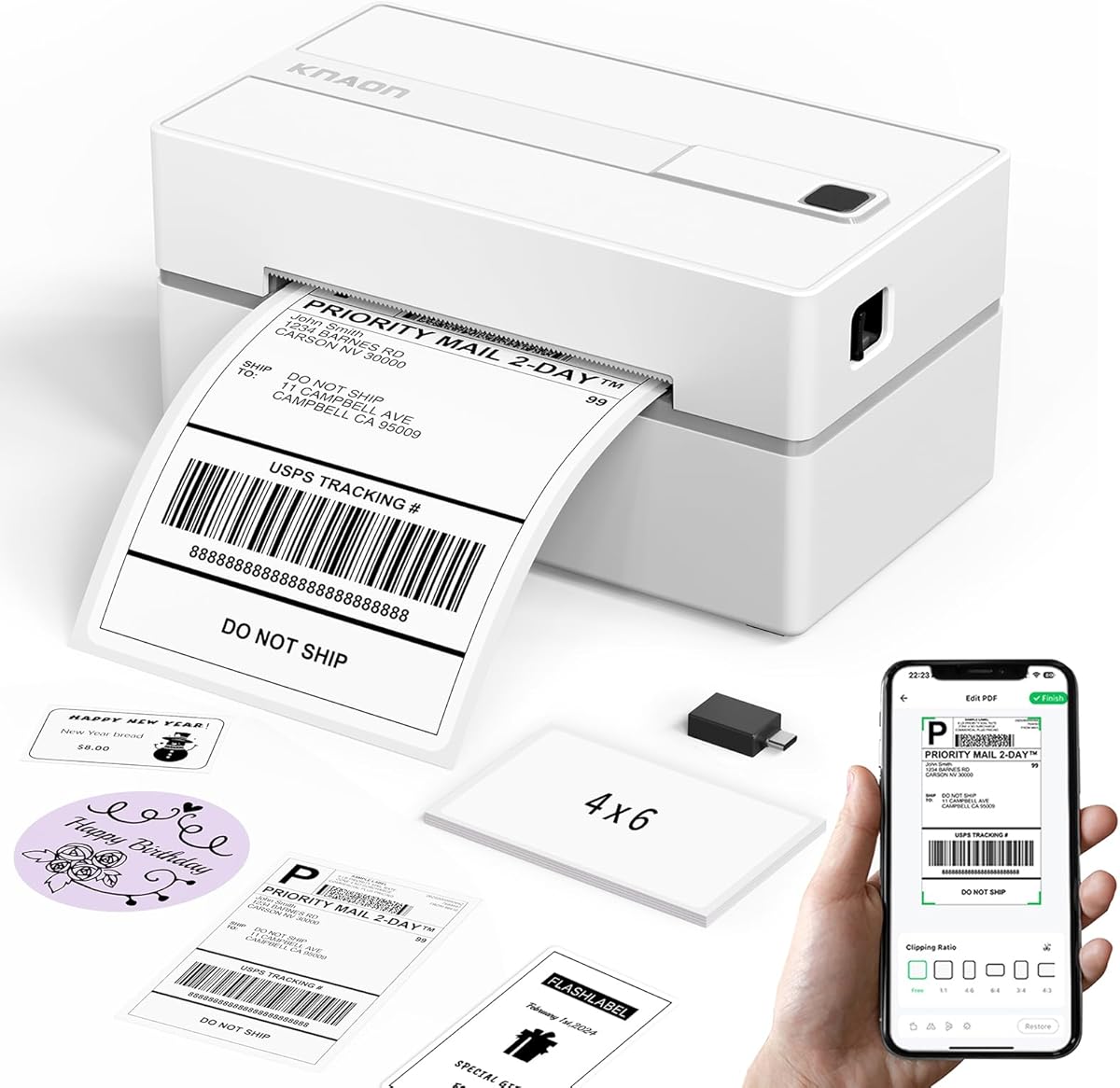
The KNAON Bluetooth Thermal Shipping Label Printer is a top pick for users on ChromeOS and Mac. It includes a built-in USB drive with drivers and tutorials, simplifying the setup process for all platforms.
We may earn a commission when you buy through this link, at no additional cost to you.
With a printing speed of 180mm/s, it is one of the fastest in its class. This high speed ensures that you can print labels quickly even during busy times without bottlenecks.
ChromeOS users can install an extension to enable printing, making it very versatile. The compact design saves space on your desk while maintaining professional-grade output for shipping and inventory.
This device is perfect for modern workflows that utilize web-based tools or Chromebooks. Its speed and ease of setup make it a strong contender for any small business looking to optimize their workflow.
ChromeOS compatibility ensures you can use it with lightweight devices without heavy driver installs.
Includes built-in tutorials and drivers to get you started immediately after unboxing.
We may earn a commission when you buy through this link, at no additional cost to you.
This MUNBYN model features advanced DAC Dynamic Algorithm technology to ensure precision in every print. It is designed to minimize errors and misalignments, making it reliable for high value shipping tasks.
We may earn a commission when you buy through this link, at no additional cost to you.
It operates at a quiet 60 dB, which is quieter than typing. This makes it a great choice for quiet environments like shared offices or libraries where noise might be a distraction.
The printer boasts a lifespan of up to 970000 labels, offering durability that pays off over time. However, you should note the slightly higher price compared to basic models due to these advanced features.
For professionals who need absolute clarity and consistency, this is a top-tier option. The combination of durability and precision ensures that your labels look professional every time you use them.
The DAC chip auto-calibrates to reduce errors and improve print accuracy consistently.
Low noise levels ensure a peaceful work environment during long shipping sessions.
We may earn a commission when you buy through this link, at no additional cost to you.
Choosing the right label printer involves understanding connectivity, speed, and software support. This section covers key factors to help you select a device that fits your Mac environment.
Mac compatibility often hinges on whether the printer supports USB or Bluetooth. USB is generally more stable for desktop Macs while Bluetooth offers flexibility for M1 or M2 laptops.
Check if the manufacturer provides specific drivers or apps for your macOS version to ensure seamless connection and printing.
Speed varies from model to model, typically ranging from 150mm to 180mm per second. Faster speeds are crucial if you handle high volume shipping daily.
Look for ratings that confirm the advertised speed to ensure you get real-world performance.
Many printers require specific apps like FlashLabel or NELKO to function wirelessly. Ensure these apps work smoothly with your Mac.
Check if the software supports your shipping platforms directly to reduce steps in your workflow.
Standard 4×6 shipping labels are common but some printers support smaller or wider formats. Confirm the width range matches your needs.
Ensure the printer can handle both fanfold and roll labels if you prefer specific styles.
Durability affects how long the printer lasts under heavy use. Look for reinforced printheads and sturdy casings.
Read reviews regarding heat protection and stability to avoid jams or malfunctions.
Your printer should integrate well with platforms like Amazon, eBay, and Shopify. Some require saving as PDFs while others offer direct API links.
Verify the support list before purchasing to avoid workflow interruptions.
Thermal labels can vary in cost depending on the brand. Using generic labels may save money but could affect print quality.
Consider the long-term cost of labels and any required maintenance parts.
Look for at least a one-year warranty and accessible customer support. Some brands offer video tutorials and remote help.
Good support can save you time when troubleshooting Mac connection issues.
Start by connecting the printer to your Mac using a USB cable or Bluetooth if supported. Install any drivers or apps required and calibrate the device by feeding a label through.
Design your label using the provided app or by saving a PDF from your shipping platform. Select the correct paper size in settings to prevent alignment issues.
Keep the printhead clean by wiping it gently with a cotton swab and alcohol. Store labels in a cool, dry place to avoid moisture damage and ensure crisp prints.
Not all printers work with Mac. Check for macOS drivers or apps. Most thermal printers support Mac via USB or apps but verify compatibility.
Most printers support 4×6 shipping labels and smaller sizes like 2×1. Confirm the width range matches your needs before buying.
Yes most printers use specific apps or drivers. Ensure the software works with your Mac version to avoid setup issues.
Calibrate by feeding a label and using the feed button. Follow the app or manual steps to ensure proper alignment.
Not usually. Most printers have USB cables. If your Mac lacks USB ports, use a simple adapter included with the device.
You can use generic labels but check compatibility. Some printers work better with branded labels to avoid jams.
Try USB as a backup. Check driver updates. Ensure Bluetooth is enabled on your Mac and restart the printer.
Turn off the printer. Use a cotton swab dipped in alcohol. Gently wipe the print head and let it dry.
The JADENS, Rongta, and MUNBYN models offer strong performance and Mac support. Each meets specific needs from budget to high volume shipping.
Prioritize connectivity speed and platform compatibility to ensure your workflow stays efficient. A reliable printer can save you hours each week.
Prices and availability change so check current listings before buying. Select the model that best fits your current shipping demands.